WordPress plugin
The official DimensionKit for WordPress plugin connects your WordPress site to your DimensionKit account. It lets you authorize your domain in one click, list your scorecards, and embed them using a native block or shortcode.
The plugin is available on the WordPress.org Plugin Directory.
Key features
Section titled “Key features”- Connect once: Authenticates with DimensionKit using OAuth 2.1. No API keys to copy or manage.
- One-click allowlisting: DimensionKit restricts embedding to authorized domains. The plugin automatically adds your site’s URL to the scorecard’s allowlist.
- Gutenberg block & shortcode: Place assessments using the native block editor or the
[dimensionkit]shortcode. - Responsive auto-resizing: The embedded iframe automatically adjusts its height as visitors answer questions, avoiding inner scrollbars.
- Built on MCP: Under the hood, the plugin operates as a Model Context Protocol (MCP) client communicating with
https://app.dimensionkit.com/mcp.
Requirements
Section titled “Requirements”- WordPress 6.3 or newer
- PHP 7.4 or newer
- An active DimensionKit account
- A site served over HTTPS (required for OAuth redirect security;
http://localhostis supported for local development)
Installation
Section titled “Installation”- In your WordPress admin, navigate to Plugins → Add New Plugin.
- Search for DimensionKit.
- Click Install Now, then click Activate.
Alternatively, download the plugin from WordPress.org and upload the .zip file via Plugins → Add New Plugin → Upload Plugin.
Connecting your account
Section titled “Connecting your account”- In your WordPress admin menu, open DimensionKit.
- Click Connect to DimensionKit.
- You will be redirected to DimensionKit. Sign in if needed, then approve access.
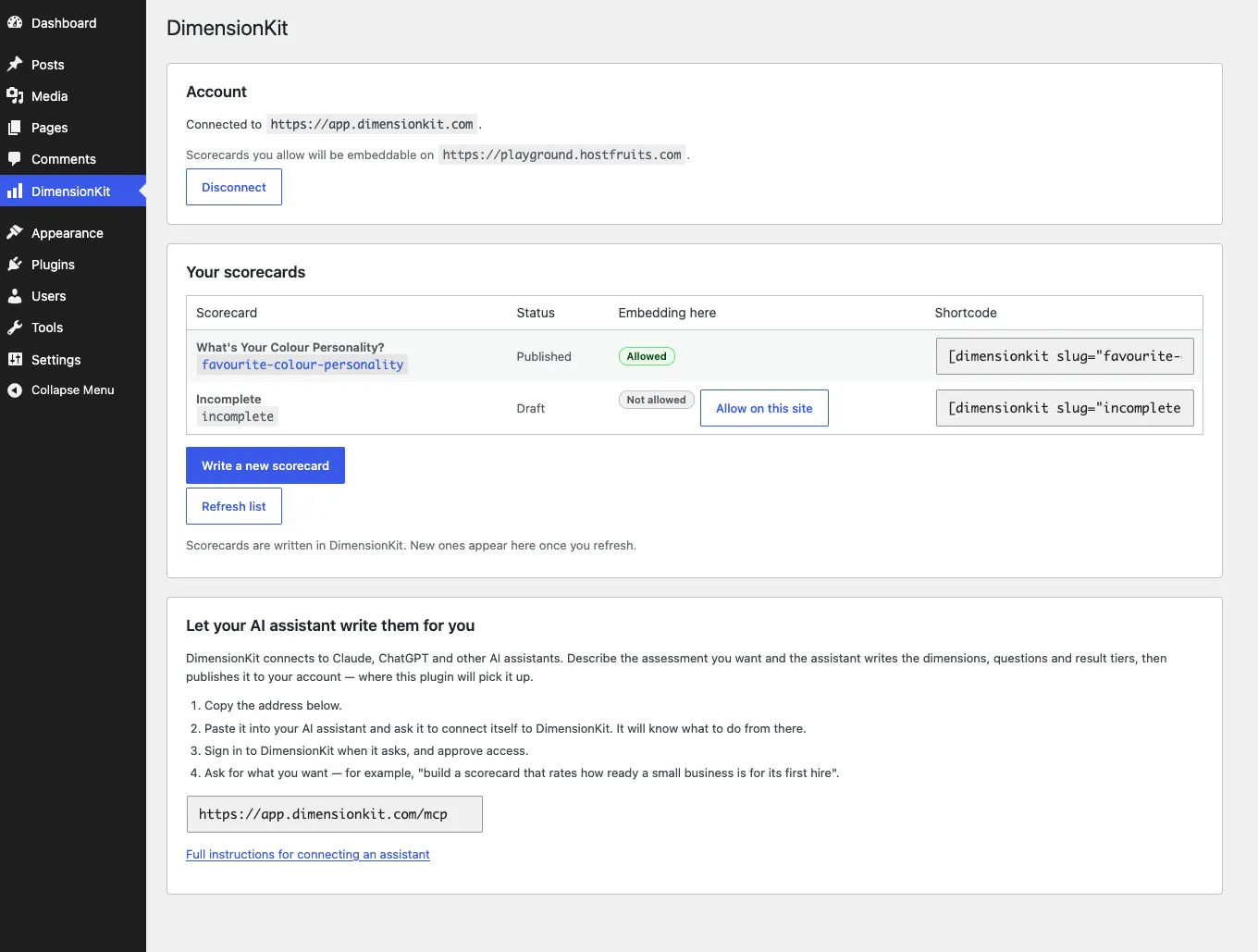
- You are returned to your WordPress admin, where your scorecards are now listed.
Allowing scorecards on this site
Section titled “Allowing scorecards on this site”DimensionKit enforces origin security using the Content-Security-Policy: frame-ancestors header. A scorecard will not render on a domain unless that origin has been added to its allowlist.
To authorize your site:
- In the DimensionKit admin screen, locate the scorecard in the table.
- Click Allow on this site.
- The status updates to Allowed on this site.
Embedding a scorecard
Section titled “Embedding a scorecard”You can embed scorecards using the WordPress block editor or a shortcode.
Option 1: Block editor (Gutenberg)
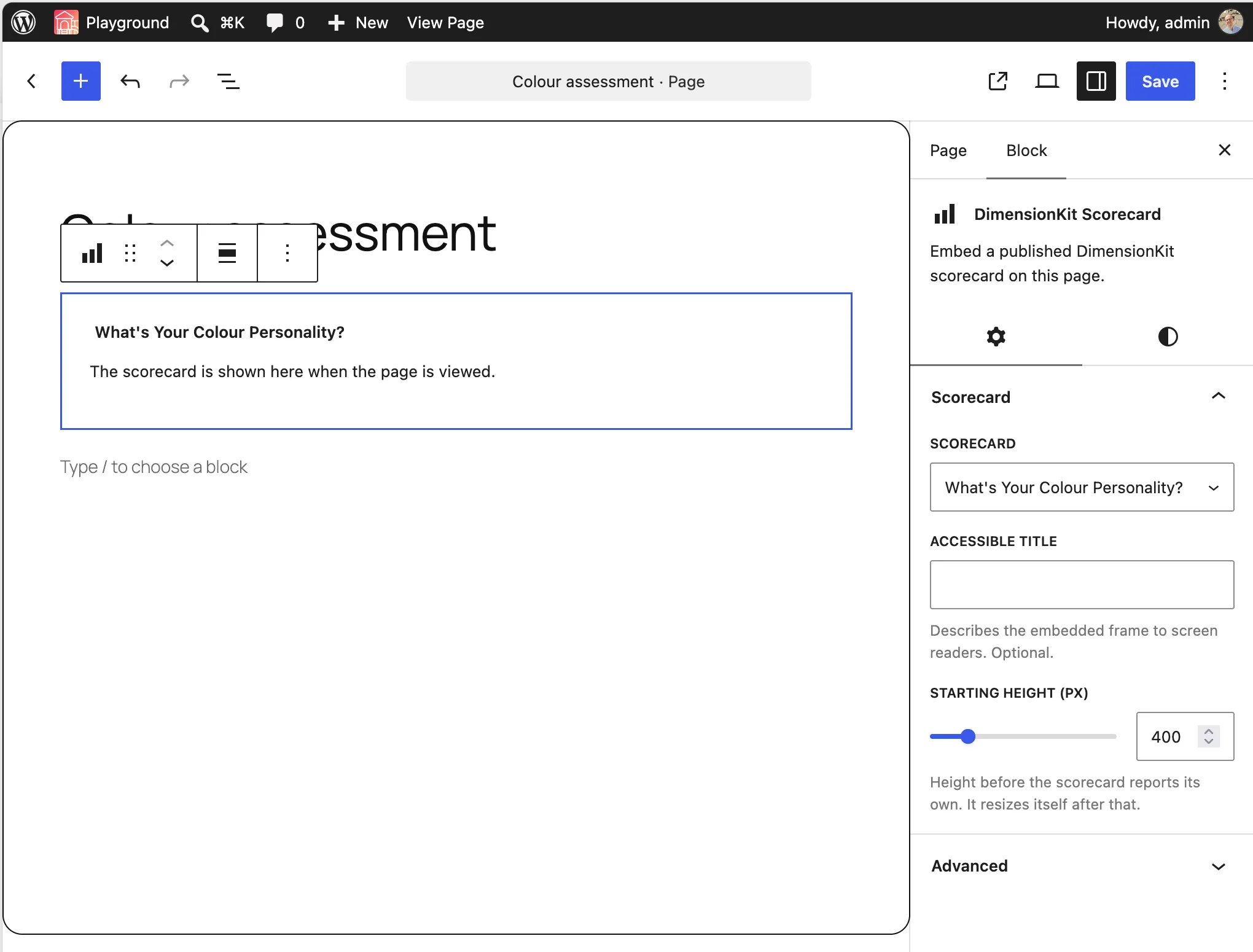
Section titled “Option 1: Block editor (Gutenberg)”- Open the post or page editor.
- Add a new block and search for DimensionKit Scorecard.
- Select your scorecard from the dropdown in the block toolbar.
- In the block settings sidebar on the right, you can optionally configure:
- Minimum height: Initial iframe height in pixels before the scorecard reports its dynamic height (default:
400). - Title: Accessible iframe title for screen readers.
- Minimum height: Initial iframe height in pixels before the scorecard reports its dynamic height (default:
Option 2: Shortcode
Section titled “Option 2: Shortcode”Use the shortcode in the Classic Editor, text widgets, or page builders (Elementor, Beaver Builder, Divi, etc.):
[dimensionkit slug="your-scorecard-slug"]| Parameter | Required | Description |
|---|---|---|
slug |
Yes | The slug of the scorecard (displayed in the DimensionKit settings table). |
min_height |
No | Initial height in pixels before dynamic resize. Defaults to 400. |
title |
No | Accessible title for the iframe. |
You can place multiple scorecards on the same page.
Visitor experience
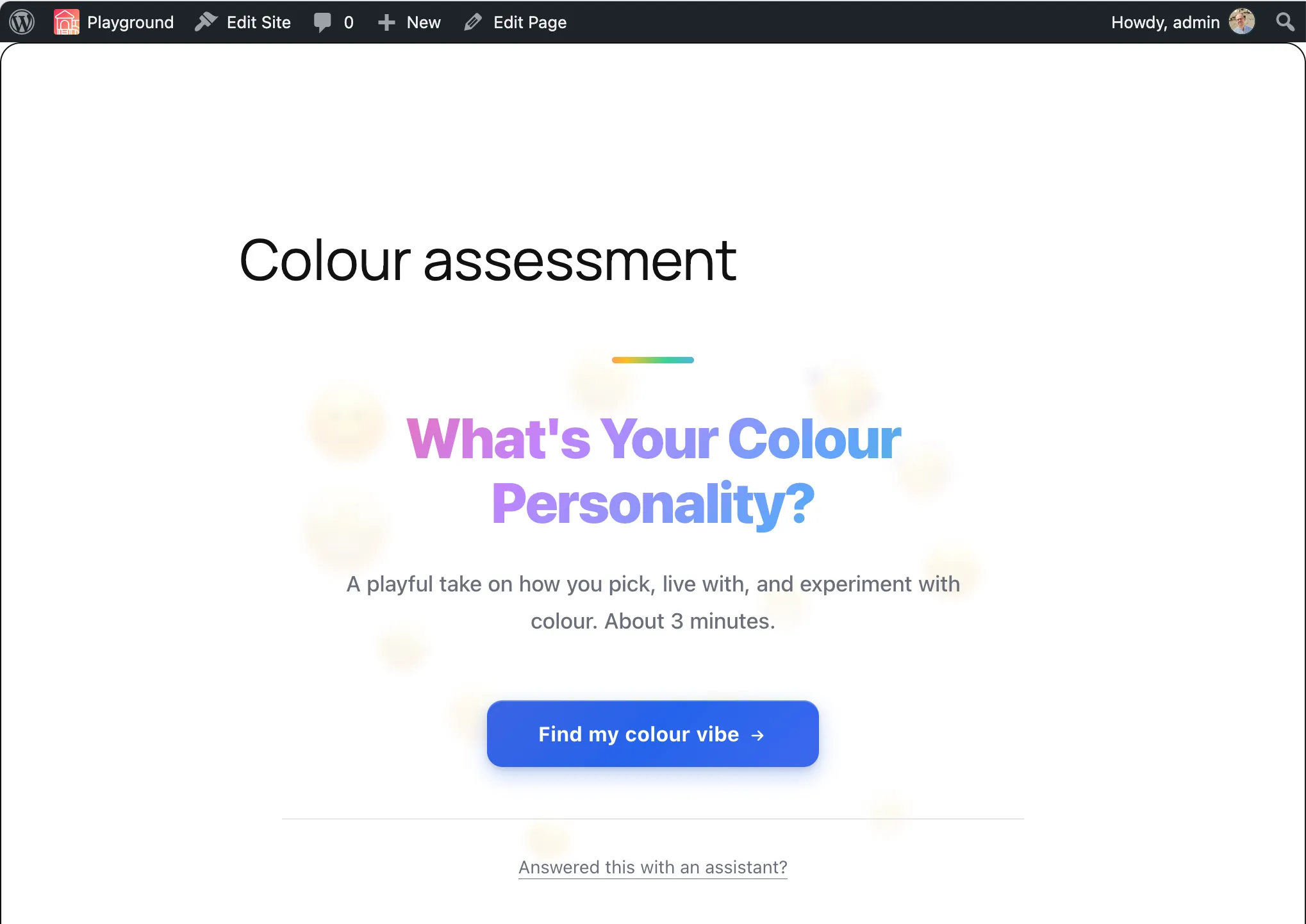
Section titled “Visitor experience”When a visitor views the page, the scorecard loads directly inside your layout, matching its configured theme and resizing seamlessly.
Creating scorecards
Section titled “Creating scorecards”Scorecards are created and configured in DimensionKit:
- Web interface: Click Write a new scorecard in the plugin settings screen to open the DimensionKit builder.
- AI assistant (MCP): Connect Claude, ChatGPT, or Cursor to DimensionKit’s MCP server using the connector URL displayed in the plugin settings (
https://app.dimensionkit.com/mcp). Ask your assistant to design the dimensions, questions, and tiers. See the Connecting an MCP client guide.
After publishing a new scorecard in DimensionKit, return to WordPress and click Refresh list. The scorecard list is cached for five minutes by default.
Troubleshooting
Section titled “Troubleshooting”Blank area where the scorecard should be
Section titled “Blank area where the scorecard should be”The site origin is not allowed yet. In WordPress, go to DimensionKit and click Allow on this site for that scorecard. Verify that your site protocol (https://) and domain match your WordPress Site Address setting.
Visible to administrators but not to visitors
Section titled “Visible to administrators but not to visitors”The scorecard is likely still saved as a draft. Draft scorecards return 404 to visitors. Publish the scorecard in DimensionKit.
Newly created scorecard does not appear in the list
Section titled “Newly created scorecard does not appear in the list”The scorecard list is cached for five minutes to minimize API requests. Click Refresh list on the settings screen to fetch the latest list immediately.
Disconnecting the account
Section titled “Disconnecting the account”Clicking Disconnect in the settings screen clears your stored OAuth tokens from WordPress. Existing scorecards already embedded on your site continue to function, as the site domain remains on the scorecard’s allowlist in DimensionKit.